 Winbox
Winbox Register Tutorial
The Winbox register page gets you to the form quickly. This page is for the part after that: what the form actually asks for, in the order it asks, based on a live check of the registration screen.
Checked directly on h5.wbwin06.com on 25 September 2026. Registration forms change, so treat the screens quoted here as a snapshot and follow whatever your own screen shows if it differs.
The referrer question comes first
Before showing any account fields, the form asked for a referrer's UID or email — a required first step, not an optional extra. If you don't have one, the form itself suggested asking an existing Winbox user or searching online, and offered a link to contact support. The referral page covers this step in more detail.
Open the sign-in screen
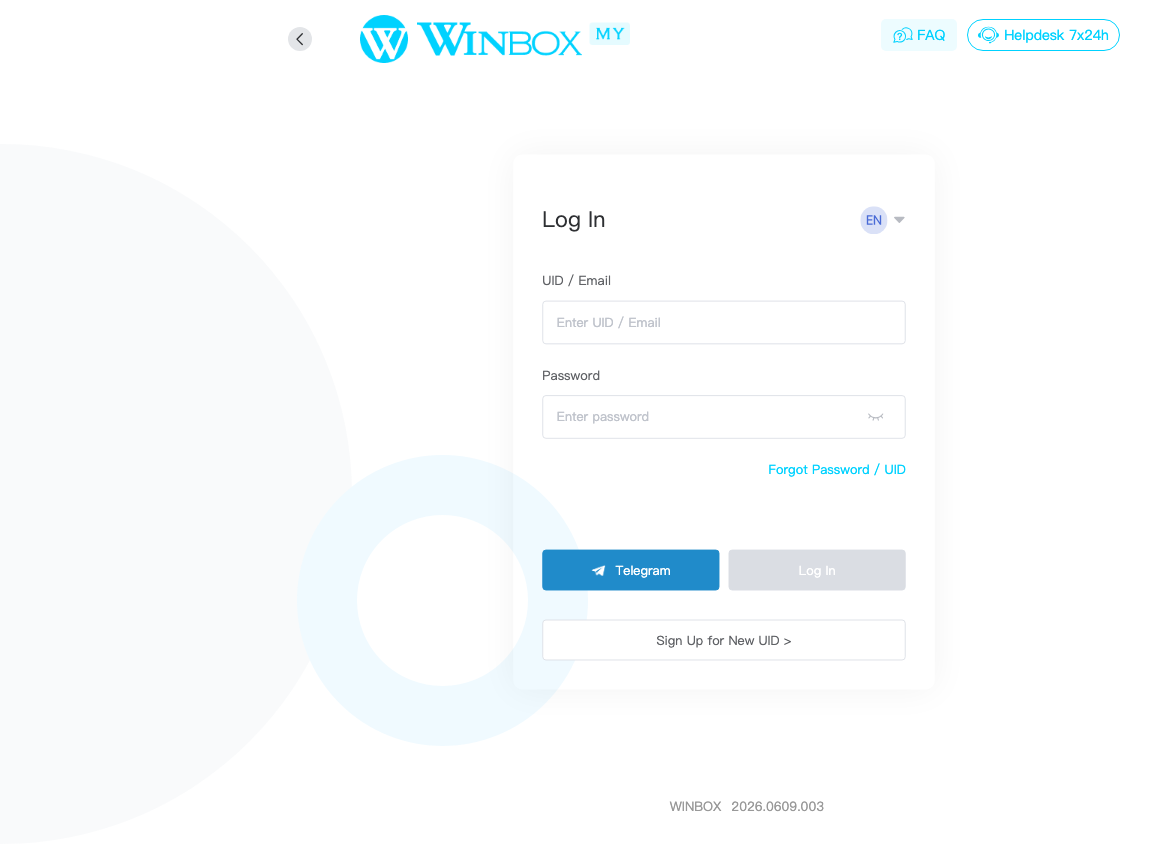
The screen shows UID/Email and Password fields, a Log In button, a Telegram quick-login option, and a Sign Up for New UID button below them.
Enter a referrer
Tapping Sign Up for New UID opens a two-step form. Step 1 of 2 is “Enter Referrer”, asking for the referrer's UID or email before anything else. A Next button stays disabled until the field is filled.

Step 2: the account form itself
This site wasn't able to complete a referrer step to view step 2 directly without creating a real account, so the fields below are shown from a separate recorded session on a related Winbox instance (dated April 2025) rather than a fresh check. Field order and exact wording can differ from what you see — this section is a general orientation, not a guaranteed match for your screen.
UID, password, and verification
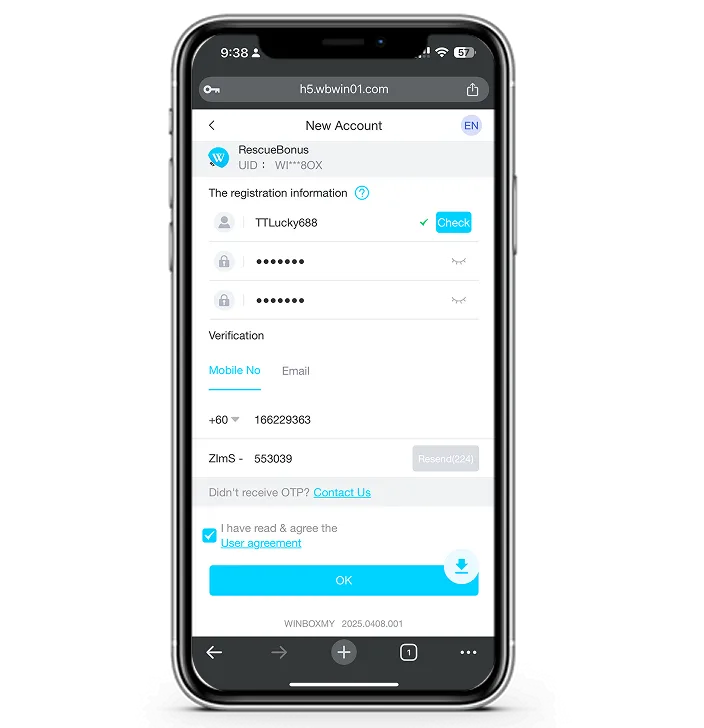
In that recording, the account form asked for a new UID (with a Check button to confirm availability), a password, and a confirmation of that password. Below those fields, a Verification section offered Mobile No and Email tabs, each requesting an OTP.
A checkbox for the User agreement sat above the final button, with a link to read the agreement itself.

Filled in and ready to submit
The same form, filled in: a checked UID, a password entered twice, and a mobile OTP with a resend countdown running below it. Once the agreement box is checked, the final button becomes active.
What a successful submission looks like
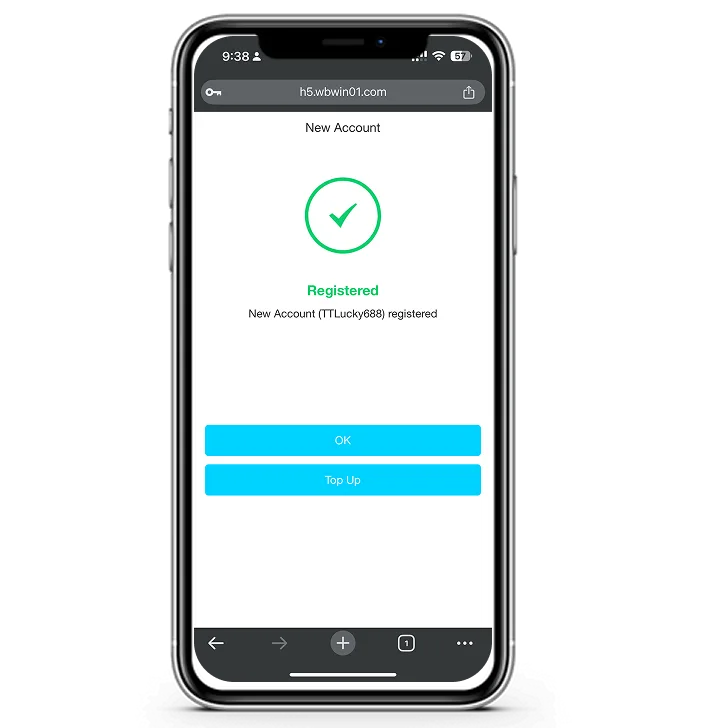
In that same recording, a successful submission showed a green checkmark, the word “Registered”, and the new account name — followed by two buttons: OK, and Top Up. There was no other confirmation step shown.
Whether your account needs anything else before you can play — a top-up, a verification step — isn't something this page can confirm in advance. Check what the platform shows once you're in.
If your form doesn't match this page
- Fields in a different order, or an extra field: fill in what your own screen actually asks for, not the sequence described here.
- A code that doesn't arrive: check the number or address you entered, then try again.
- No referrer available: the form itself is the source for what to do — this page can't supply one for you.
- Anything else unclear: contact support through the channel the form links to, rather than guessing.
After registering
Once you have an account, log in to Winbox the same way going forward — the sign-in screen is what you saw first. If you'd rather use the app than a browser, the download page covers both. Identity checks, where they apply, are covered separately on the real-name authentication page. For everything else this site explains, start from winbox88me.com.
Common questions
Do I need a referrer to register?
The form checked for this page asked for one before showing the rest of the fields, with guidance for finding one if you don't have it. Whether it can be skipped isn't something this page can confirm — follow what your own screen shows.
Is a Winbox account created on this site?
No. This page only explains the form; the account itself is created on Winbox's own platform, not on winbox88me.com.